Install
macOS prerequisites and first launch.
Quack 2.0.0 is a macOS desktop app — download the .dmg, open, done. No account required to start.
Prerequisites
You need at least one of the CLIs Quack drives, installed and working on its own first:
- Claude Code —
claudeon your PATH, signed in - Codex —
codexon your PATH, signed in
You need the CLIs, not the desktop apps. Quack does not need Codex the app, or Antigravity, or any other GUI installed. It needs their command-line tools on your PATH. Installing the desktop app instead of the CLI is the most common reason a provider doesn't show up.
Quack doesn't replace these — it drives them. If claude --version doesn't
work in your terminal, fix that first.
Signing in to a CLI
Some providers need a one-time login before Quack can drive them. You do that from a terminal, and Quack has one built in — no need to leave the app.
Open the panel switcher at the top of the chat and pick Terminal:
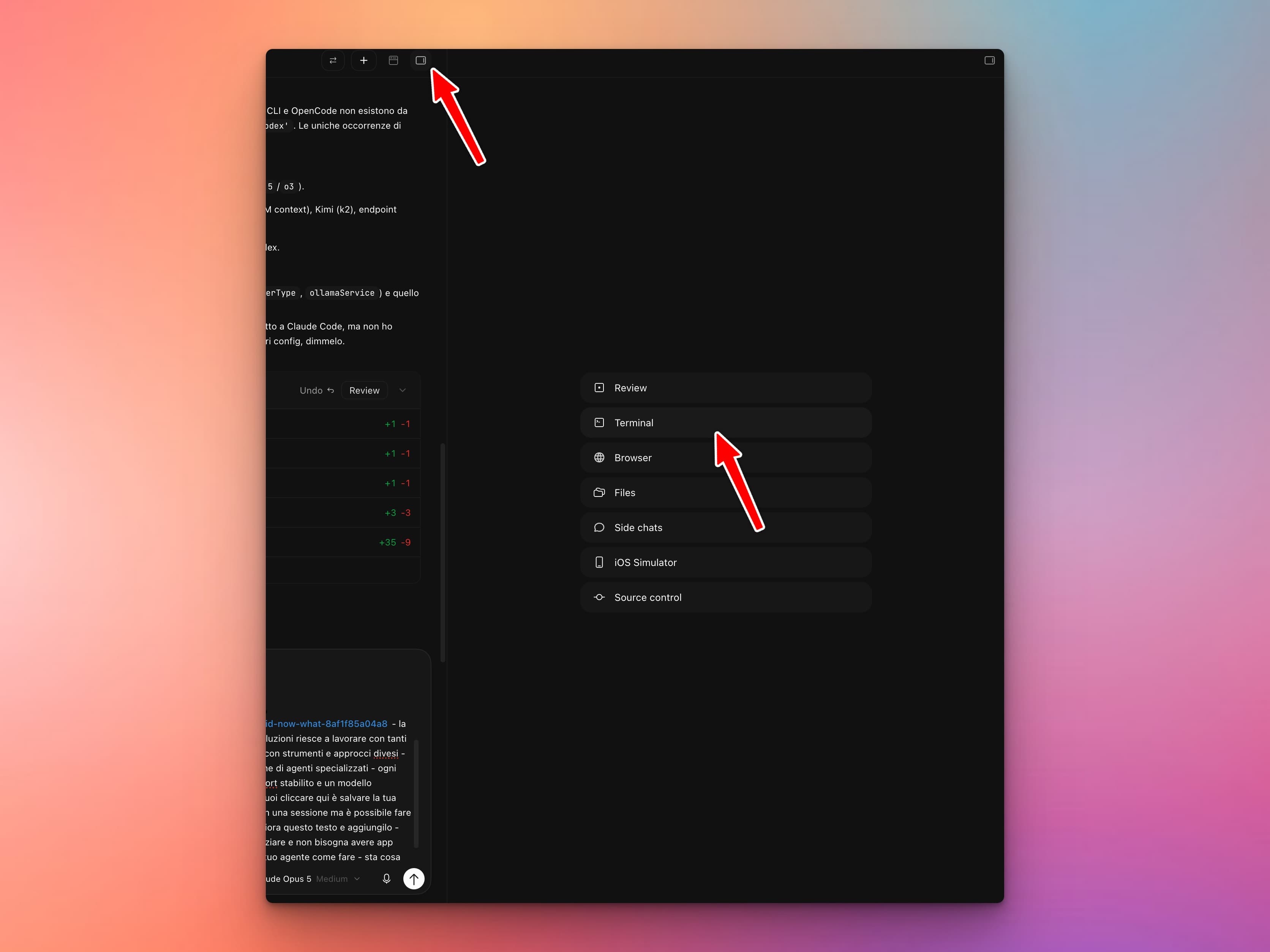
Then run the CLI's login command. For Claude Code that's:
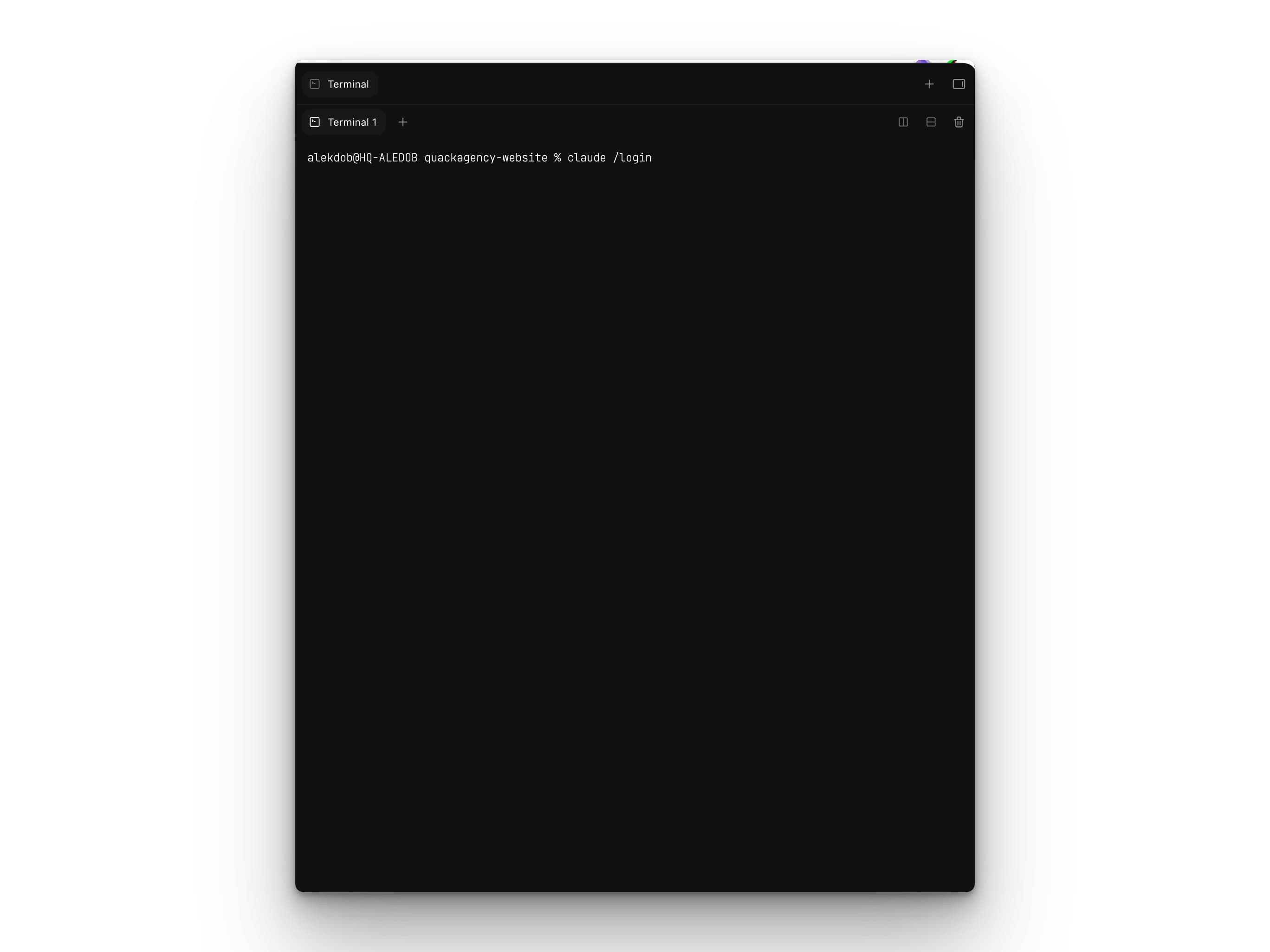
Follow the prompts, and you're signed in for good. Other CLIs have their own equivalent — if you're not sure which, ask one of your agents. Open a chat and ask it how to install and log in to the CLI you want. It has a terminal and it'll walk you through it.
Platforms
Quack currently ships for macOS (Apple Silicon).
First launch
The first time you open Quack you get a short one-time wizard:
- Welcome
- Workspace — open a project folder. You can't continue past this step until a folder is actually open, because signing in to Claude Code needs a workspace to run in.
- Shortcuts — the keyboard shortcuts worth knowing up front
- Providers — sign in to Claude Code, or add API keys for Anthropic, Bedrock, or an Anthropic-compatible endpoint. Ollama needs no key.
Shortcuts and Providers can be skipped and configured later. If you're reinstalling and already completed onboarding on a previous version, the wizard is skipped entirely.